

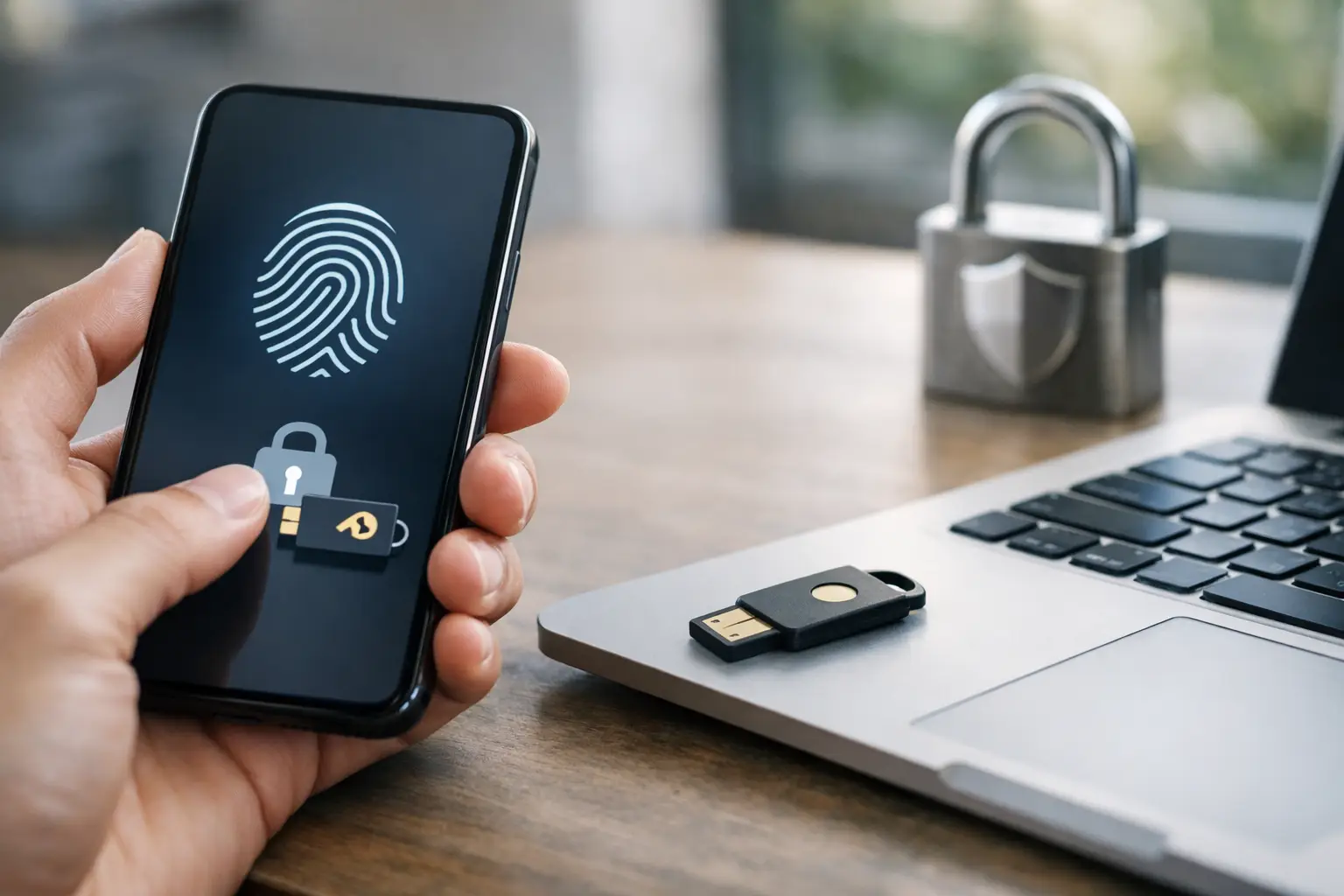
A password manager can create a unique 20-character password in seconds, but you still have to type it, approve it, or copy it into a website. That familiar process is exactly what passkeys are designed to replace. This beginner guide to passkeys explains what changes when you sign in with one, how to set one up, and what to do before relying on passkeys for your most important accounts.
What is a passkey?
A passkey is a digital credential that lets you sign in without entering a password. Instead, you confirm your identity with the security method already built into your device, such as Face ID, Touch ID, a fingerprint reader, a device PIN, or a screen lock pattern.
The key detail is that a passkey is tied to the website or app it was created for. When you choose to sign in, your device proves it has the correct credential without sending a reusable secret to the site. In practical terms, that means there is no password for you to remember and no password for a criminal to steal from a breached website database.
Passkeys are based on public-key cryptography. Your device keeps a private key protected, while the service stores a matching public key. The public key cannot be used to recreate the private key. You do not need to understand the math to use passkeys, but this design explains why they can provide stronger protection than ordinary passwords.
Why passkeys can be safer than passwords
Passwords have several structural weaknesses. People reuse them, choose predictable variations, and can be fooled into entering them on convincing fake websites. Even a strong, unique password can be captured if you type it into a phishing page.
Passkeys help reduce those risks because they are connected to the legitimate site or app. If you open a lookalike phishing site, your device should not offer the passkey created for the real service. There is nothing to type, which removes a common opportunity for credential theft.
They also reduce the burden of managing account security. You no longer need to invent, memorize, or periodically reset a password for each supported account. Your biometric check or device PIN confirms that it is you using the passkey.
That does not mean passkeys make every account automatically safe. Anyone who can unlock your phone or computer may be able to access your accounts, depending on the device and account settings. Device security still matters, and recovery options need the same attention as your primary sign-in method.
How passkeys work when you sign in
The first time you create a passkey, a website or app will usually ask whether you want to save one to your device or password manager. After you approve the request, your device generates the passkey and stores it in a protected location.
On your next visit, select the passkey sign-in option. Your device may show a prompt asking you to verify with Face ID, a fingerprint, or your PIN. Once approved, the sign-in is completed. There is no password field to fill out.
Many passkeys can sync across devices through an ecosystem account. For example, a passkey saved through Apple may be available on other devices signed in to the same Apple Account. Google and Microsoft offer similar sync options through their respective services, and some password managers also support passkey storage and syncing.
You can also use a passkey stored on your phone to sign in on another device. A computer may display a QR code, which you scan with your phone. Your phone then confirms the sign-in after you authenticate locally. This is useful when you are using a shared computer or when the passkey is not stored directly on that machine.
Beginner guide to passkeys: setting up your first one
Start with a well-known service you use regularly, ideally one that already has strong account recovery information on file. Your email provider, shopping account, or social media account may offer passkeys in its security settings.
The exact labels vary, but the process is usually straightforward:
- Sign in to the account using your existing password and any two-factor authentication.
- Open the account’s Security, Login, or Sign-in settings.
- Look for Passkeys, Passwordless Sign-In, or a similar option.
- Choose to create a passkey and approve the prompt from your device.
- Test the new sign-in method in a separate browser window before removing or changing other recovery options.
Keep your existing password at first if the service allows it. Treat the first few passkeys as a trial period while you learn how they behave across your phone, tablet, and computer. Once you are comfortable, you can decide whether to remove the password where that option is available.
Before creating a passkey, make sure your device has a secure screen lock enabled. A simple or shared PIN weakens the protection that makes passkeys useful. Update your operating system and browser as well, since passkey support depends on current software.
Where your passkeys are stored
This is the question many new users miss. A passkey is not automatically stored everywhere you use an account. Its availability depends on where you save it and whether that provider syncs it to your other devices.
If you use an iPhone, iPad, and Mac, saving passkeys in Apple’s credential system can be convenient because they can appear across those devices. Android users may prefer Google’s passkey manager, especially if they use Chrome and multiple Android devices. Windows users can use supported Windows credential options, and password managers may be a better fit for people who switch frequently between Apple, Android, Windows, and Linux.
There is no single best choice for everyone. Staying within one device ecosystem is usually the simplest route. A cross-platform password manager can be more practical for households with mixed devices or people who use a work PC and a personal phone from different platforms.
Choose one primary place to save passkeys whenever possible. Creating duplicate credentials in several places can make account management harder, especially if you later need to remove an old device or troubleshoot sign-in prompts.
What happens if you lose your phone?
Losing a phone does not necessarily mean losing access to every account. If your passkeys sync to a trusted account, you may be able to sign in from another enrolled device. But that outcome depends on having access to the ecosystem account and its recovery methods.
For that reason, protect your Apple Account, Google Account, Microsoft account, or password manager account with a strong unique password and multi-factor authentication where supported. These accounts can become the route back to your synced passkeys.
It is also smart to review recovery email addresses, phone numbers, backup codes, and trusted devices for important services. Do this before an emergency, not after you are locked out. Store backup codes in a secure location that is separate from the phone they are intended to recover.
If a device is lost or stolen, use your platform’s device-finding tools to lock or erase it remotely. Then remove that device from the trusted-device list for accounts that support it. A passkey usually requires local device authentication, but quick action is still the right response.
Common passkey limitations to expect
Passkeys are widely supported, but adoption is still uneven. Some websites offer them only in their mobile app, while others allow passkeys as an additional sign-in option but still require a password for certain account changes. Older devices and browsers may not display the necessary prompts.
Shared devices can also be awkward. You should avoid saving a personal passkey to a public or shared computer. Instead, use the phone-to-computer QR sign-in method when available, or sign in through a private browser session and log out afterward.
Work accounts deserve extra care. Your employer may manage browser settings, device access, or identity providers differently from consumer services. Follow workplace policies before adding personal sign-in methods or syncing credentials to an unmanaged device.
Passkeys also do not eliminate scams that target payments, personal information, or remote access to your device. A fake support representative may not be able to steal your passkey directly, but they can still try to persuade you to approve a sign-in, disclose a verification code, or install unwanted software. Pause before approving unexpected prompts.
A practical way to adopt passkeys
You do not need to convert every account in one afternoon. Start with one or two services, confirm that your passkeys sync as expected, and make sure your recovery details are current. Then add passkeys to high-value accounts such as your primary email, financial services, and major shopping platforms when those services support them.
Keep using a password manager for accounts that do not yet offer passkeys. Password managers and passkeys are not competing ideas for most users. A password manager remains useful for generating unique passwords, storing recovery codes, and handling older sites during the transition.
Passkeys work best when they become a normal part of careful account management, not a feature you enable and forget. Set up your first one on a device you trust, test it before removing fallback access, and give yourself time to build confidence with the new sign-in process.
