

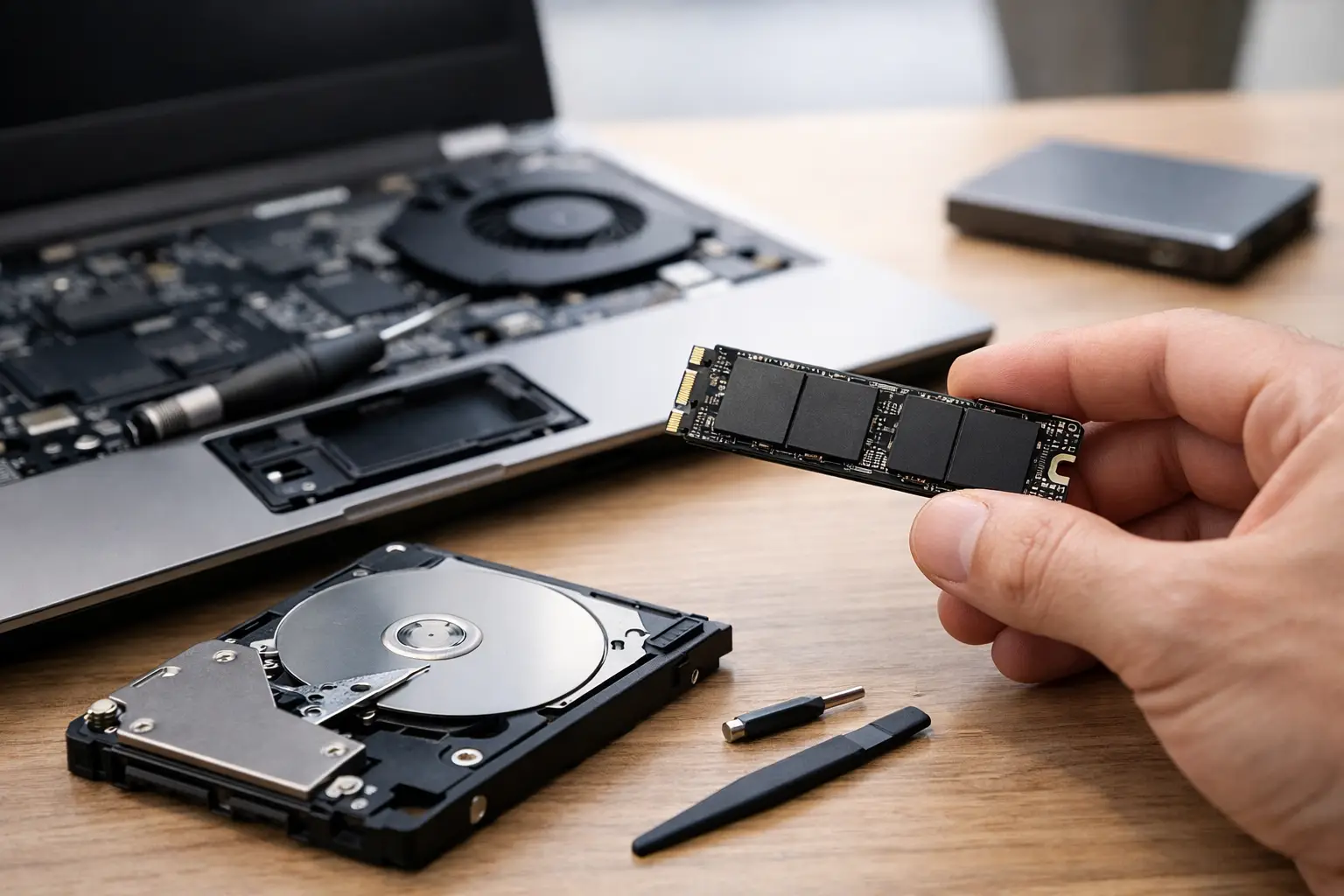
A laptop that takes two minutes to boot, stalls when opening apps, or chokes under browser tabs usually does not need to be replaced right away. In many cases, an ssd upgrade for laptops is the single change that makes the biggest difference, especially if the system still uses a hard drive or a small, aging SATA SSD.
This upgrade is popular for a reason. Storage speed affects startup time, app launches, file transfers, update installs, and how responsive the whole system feels. But it is not one-size-fits-all. The right drive depends on your laptop’s physical slot, interface support, power limits, and how much storage you actually need.
Why an SSD upgrade for laptops matters
If your laptop has a traditional hard disk drive, moving to any solid-state drive will feel dramatic. Hard drives rely on spinning platters and mechanical heads. SSDs use flash memory, so access times are much lower and random reads are much faster. That means less waiting when Windows loads, less lag opening programs, and better performance during multitasking.
If your laptop already has an older SATA SSD, the improvement from a newer NVMe drive can still be noticeable, but the jump is usually smaller in everyday use. Boot times may improve a bit. Large file transfers, game installs, and heavier creative workloads often show a clearer benefit than web browsing or office work.
The trade-off is compatibility. A faster SSD on paper does not help if your laptop only supports slower standards. That is why checking the hardware first matters more than buying the highest advertised speed.
First, figure out what your laptop supports
Before buying anything, confirm three things: the physical form factor, the interface, and the storage capacity your laptop can handle comfortably.
2.5-inch SATA vs M.2 SATA vs M.2 NVMe
Older and many budget laptops use a 2.5-inch SATA drive bay. These drives look like slim rectangles and connect with a SATA interface. They are still a solid option for older systems.
Many modern laptops use M.2 drives. M.2 refers to the shape and connector, not the speed. Some M.2 drives use SATA, while others use NVMe over PCIe. They can look similar, but they are not always interchangeable. A laptop with an M.2 slot may support only SATA, only NVMe, or both.
That detail matters. If you install an NVMe drive into a system that accepts only M.2 SATA, it simply will not work.
Check the size and keying
M.2 drives come in sizes such as 2280 or 2242. Those numbers describe the width and length in millimeters. Many laptops use 2280, but some thin models use shorter drives. You also need to check keying, which refers to the notch pattern on the connector.
Laptop manuals, manufacturer spec sheets, and existing drive labels are usually the fastest way to verify this. If you can safely open the bottom cover, looking at the installed drive often answers the question quickly.
Think about heat and power
Ultra-thin laptops sometimes run warm with high-performance NVMe drives. In those cases, a midrange SSD can be the smarter choice than the fastest flagship model. Thermal throttling can erase much of the benefit, and battery-conscious users may prefer efficient drives over peak benchmark numbers.
How much faster will your laptop feel?
This depends on what you are upgrading from.
A hard drive to SATA SSD upgrade is usually the biggest leap. Boot times can drop from well over a minute to under 20 seconds. Apps load faster, and the system feels less hesitant.
A SATA SSD to NVMe SSD upgrade is more situational. On paper, NVMe is much faster, often several times faster in sequential reads and writes. In real-world daily use, that does not always translate into a dramatic difference. If your work includes video editing, large project files, virtual machines, or frequent transfers of big files, NVMe makes more sense. For email, streaming, web apps, and schoolwork, SATA is often still good enough.
That is the part many buyers miss. Benchmarks show maximum throughput. Your own laptop experience depends more on workload, cooling, and the rest of the system.
Choosing the right capacity
For most people, 500GB is the practical starting point. It gives enough room for Windows, applications, documents, and a reasonable media library without feeling cramped too quickly.
A 1TB SSD is often the best value if you keep games, creative software, or large photo and video collections on your laptop. A 256GB drive can work for lighter use, but it fills up fast once updates, apps, and cached files accumulate.
Try not to buy exactly for today’s storage needs. SSD performance and longevity are usually better when the drive is not constantly near full capacity.
Clone your old drive or do a clean install?
This is one of the most common decisions in any SSD upgrade for laptops.
Cloning is faster
Cloning copies your existing operating system, apps, files, and partitions to the new SSD. It saves time and avoids reinstalling everything from scratch. This works well if your current setup is stable and you just want the same laptop, only faster.
The catch is that cloning also carries over old clutter, manufacturer bloatware, and any software issues already present on the system. It is convenient, but not always the cleanest long-term option.
A clean install is cleaner
A fresh Windows installation takes more effort, but it often gives the best result. You start with a clean OS, install only what you need, and avoid years of accumulated junk files and background tools.
If your laptop has been sluggish for a long time, a clean install plus a new SSD usually feels better than cloning an overloaded system. Just make sure your files are backed up and that you have access to necessary installers and account logins.
What you need before opening the laptop
The actual hardware swap is often simple, but preparation prevents avoidable mistakes. Back up important files first. If you plan to clone, you may need a USB-to-SATA adapter or an external enclosure for the new drive. For M.2 upgrades, that can also help if the laptop has only one internal slot.
Have the right screwdriver, work on a clean surface, and check whether your laptop model uses clips, hidden screws, or delicate ribbon cable layouts. Some systems are easy to open. Others are not beginner-friendly, and forcing the cover can damage it.
If your laptop is still under warranty, review the manufacturer’s policy. Some brands allow storage upgrades easily, while others are stricter about user servicing.
Common mistakes to avoid
The biggest mistake is buying the wrong SSD type. M.2 and NVMe terminology confuses a lot of buyers, so double-checking compatibility is worth the extra few minutes.
Another common issue is forgetting to update the BIOS or storage drivers if the laptop is older. Some systems recognize newer drives only after firmware updates.
Capacity planning also matters. Buying the cheapest small drive can lead to a second upgrade sooner than expected. On the other hand, paying extra for top-tier speeds on a laptop that cannot fully use them is not always money well spent.
Finally, do not ignore the rest of the laptop. If a system has very low RAM, heavy background software, or an old low-power processor, the SSD will help, but it will not solve every performance bottleneck.
When an SSD upgrade is worth it
An SSD upgrade makes the most sense when your laptop is physically in good shape, the processor is still adequate for your tasks, and the main frustration is slow responsiveness. That includes older student laptops, office machines, and many midrange systems that shipped with hard drives or small entry-level SSDs.
It may be less worthwhile if the battery is failing, the screen is damaged, RAM is soldered and too limited for your needs, or the processor is so dated that modern apps struggle regardless of storage speed. In that case, the SSD helps, but the laptop may still feel behind.
For many users, though, this is still one of the best value upgrades in PC hardware. It is practical, measurable, and easy to feel in day-to-day use.
Final thoughts on an SSD upgrade for laptops
The best SSD upgrade is not necessarily the fastest drive on the shelf. It is the one that fits your laptop correctly, matches how you use the system, and gives you enough space to stay comfortable for the next few years. A careful compatibility check and a realistic look at your workload usually matter more than chasing headline speeds. If your laptop feels slow but is otherwise serviceable, this upgrade is often the simplest way to make it feel current again.
