

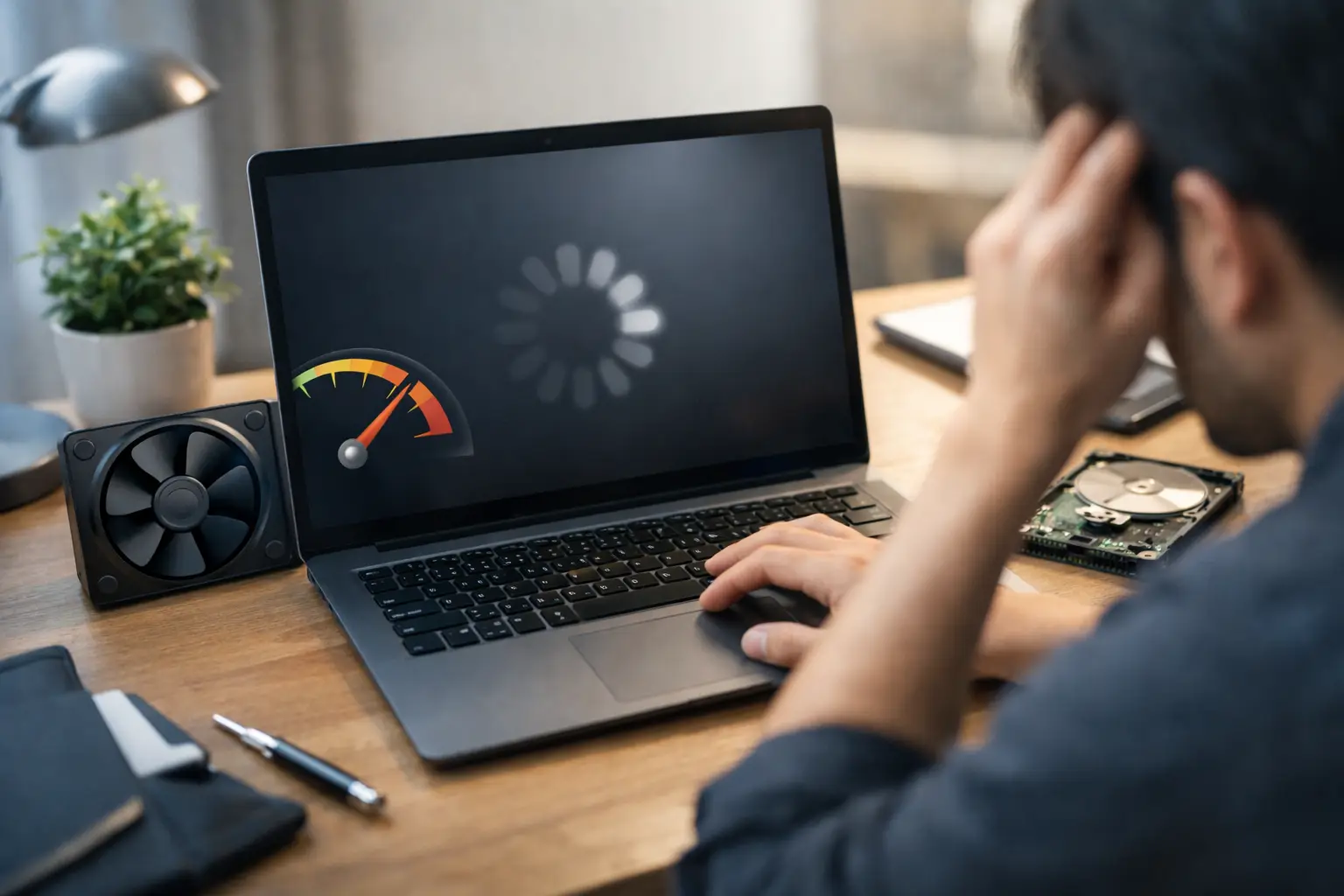
You open your laptop to answer a few emails, join a meeting, or finish a school assignment, and suddenly everything feels delayed. Apps take too long to launch, the fan ramps up for no clear reason, and even simple browsing feels heavier than it should. If you have been asking, why is my laptop so slow, the answer is usually not one single problem. It is often a mix of startup overload, limited memory, aging storage, heat, background tasks, or software issues stacking up over time.
The good news is that a slow laptop does not always mean you need a new one. In many cases, you can narrow down the cause in a few minutes and make meaningful improvements without advanced technical skills. The key is understanding where the slowdown is happening and choosing the fix that matches it.
Why is my laptop so slow all of a sudden?
When a laptop becomes noticeably slower, the first thing to consider is whether the problem appeared gradually or started after a recent change. A gradual slowdown usually points to storage filling up, too many apps running in the background, or hardware that is no longer keeping up with modern software. A sudden slowdown can be tied to a recent update, a newly installed program, overheating, or a browser extension that is using more resources than expected.
That distinction matters because it saves time. If the laptop has always been a little underpowered, no amount of cleanup will make it behave like a high-end machine. But if it was working fine last week and now struggles with basic tasks, there is a better chance something specific changed.
Start by checking what is using your laptop’s resources
Before uninstalling apps or changing settings at random, look at what your system is doing. On Windows, Task Manager gives you a fast view of CPU, memory, disk, and startup impact. On a Mac, Activity Monitor shows similar information. If one process is consuming an unusually high amount of CPU or memory for a long period, that is your first clue.
This step is more useful than guesswork. For example, a laptop may feel slow because the disk is constantly busy, not because the processor is weak. Or the system may freeze during multitasking because memory is full and the laptop is leaning too hard on virtual memory. Those are different problems, and they need different fixes.
Too many startup apps can make everything feel slow
One of the most common reasons a laptop drags is that too many programs launch when it starts. Cloud storage clients, chat apps, gaming launchers, update tools, and utility software often add themselves to startup. One by one they seem harmless. Together they can slow boot times and keep the system busy long after you sign in.
Disabling unnecessary startup apps is a practical first move. Keep security software, system tools, and anything you truly need every day. Turn off the rest and open them manually when needed. This will not transform every laptop, but on midrange or older systems it can make the machine feel noticeably more responsive.
Low RAM is a frequent bottleneck
If your laptop slows down when you have several browser tabs open, a video call running, and a few apps in the background, memory may be the issue. Modern browsers are convenient, but they are not light. Add office apps, streaming, messaging platforms, and background sync, and 4GB or even 8GB of RAM can feel tight depending on your workload.
This is where expectations matter. If you mostly write documents and browse lightly, careful app management may be enough. If you multitask heavily, edit media, or keep dozens of tabs open, the laptop may simply need more memory. Some laptops allow RAM upgrades, while many newer thin models do not. If yours is upgradeable, adding RAM is one of the most effective performance improvements available.
Your storage drive may be holding the system back
A laptop with an old hard disk drive will almost always feel slower than one with a solid-state drive. Traditional hard drives are much slower at reading and writing small files, which affects boot time, app launches, updates, and general responsiveness. If your laptop still uses an HDD, that alone may explain a lot.
Even if you already have an SSD, available space still matters. When storage is nearly full, performance can suffer, especially during updates and temporary file operations. Aim to keep a healthy amount of free space instead of running the drive to the edge. Deleting unused files, clearing downloads, and removing apps you no longer need can help more than people expect.
Browser overload is easy to overlook
Many users think the laptop is slow when the real problem is the browser. Too many tabs, memory-hungry websites, and poorly optimized extensions can make a decent laptop feel underpowered. If the slowdown mostly happens while browsing, test a simple comparison. Close extra tabs, disable nonessential extensions, and see whether the system becomes smoother.
This is especially relevant if your work happens in the browser. Web apps can quietly use a lot of memory and CPU, particularly video conferencing platforms, design tools, and live dashboards. In that case, the fix may be reducing browser load rather than changing the whole system.
Heat can reduce speed even on a powerful laptop
A laptop that gets too hot may slow itself down on purpose to protect internal components. This is called thermal throttling, and it often shows up as sudden lag during gaming, editing, video calls, or long work sessions. You may hear louder fan noise, feel excess warmth under the chassis, or notice better performance right after a restart before it slows again.
Dust buildup, blocked vents, and dried thermal paste can all contribute. Using the laptop on soft surfaces like a bed or couch makes things worse by restricting airflow. Start with the basics: use it on a hard, flat surface and clean visible vents carefully. If the machine is older and frequently overheating, a deeper internal cleaning may be worthwhile.
Updates can help, but they can also cause temporary slowdowns
Operating system updates, driver updates, and app updates are generally worth keeping current for stability and security. That said, updates can briefly make a laptop feel slower while background tasks finish indexing files, optimizing storage, or installing components. If the slowdown started right after an update, give it a little time and restart the system.
If performance stays poor, look at drivers, especially graphics and chipset drivers on Windows laptops. A problematic driver can create lag, battery drain, or high CPU usage. This is one of those areas where a recent change is often the clue you need.
Malware is possible, but it is not the only explanation
People often jump straight to malware when a laptop slows down. It is possible, but it is not the most common cause. More often, performance problems come from normal software clutter or limited hardware. Still, running a trusted security scan is a smart step if you notice unusual pop-ups, unexplained background activity, or apps you do not recognize.
The goal is to rule out the risk calmly, not to assume the worst. A clean scan lets you focus on more likely causes such as startup load, storage, or memory pressure.
When a reset makes sense
If your laptop has years of accumulated software, conflicting utilities, half-removed apps, and settings changes, a clean reset can sometimes be faster than troubleshooting every small issue. This is especially true when the system feels messy in ways that are hard to pinpoint. Back up important files first, then use the built-in recovery options for your operating system.
A reset is not always necessary, and it does take time to set things back up. But if the laptop is still reasonably modern and the hardware should be capable, a fresh software start can restore a lot of lost responsiveness.
When the real answer is hardware age
Sometimes the honest answer to why is my laptop so slow is that the hardware is simply old for what you now expect it to do. Software has become heavier. Websites are more complex. Video calls, cloud apps, and AI-powered features all demand more than they used to. A laptop that felt fast five or six years ago may struggle now even if nothing is technically broken.
That does not mean replacement is the only option. An SSD upgrade, extra RAM, or a clean operating system install can extend useful life. But there is a point where the processor, cooling design, or upgrade limits make further effort less worthwhile. If basic fixes barely help and your needs have grown, replacing the laptop may be the more practical move.
A slow laptop is frustrating, but it is usually diagnosable. Start with resource usage, then check startup apps, memory pressure, storage health, browser load, and heat. Once you match the symptom to the cause, the fix becomes much clearer – and often much simpler than it first seems.
